Adding employees (managers)
Invite staff by email with a role, location, position and rate.
For managers & adminsUpdated 31 August 2026
- Open Employees and select + Add Employee (or use Import CSV for many at once).
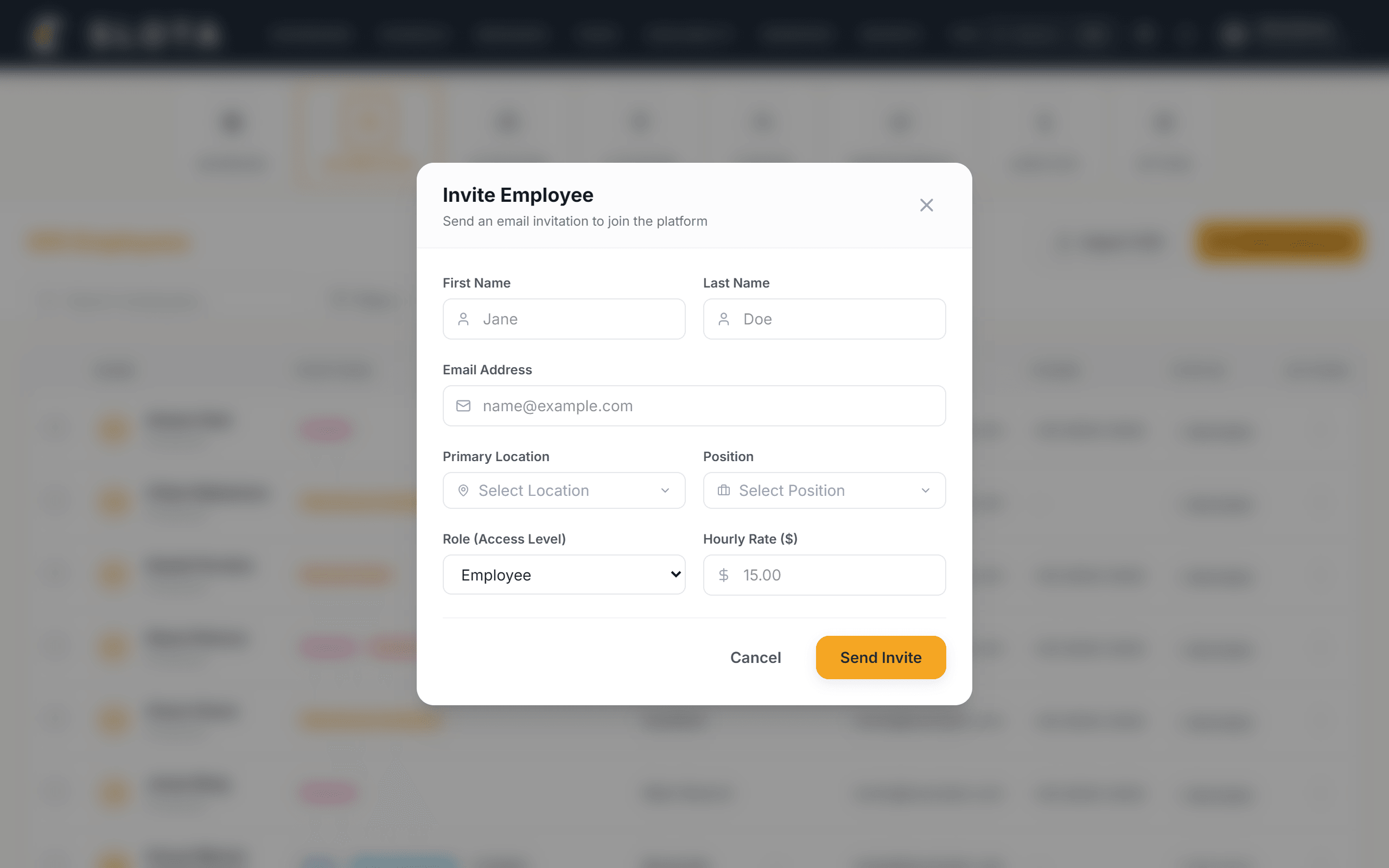
- In Invite Employee, enter the first name, last name and email address.
- Optionally choose a Primary Location, Position, Role (Access Level) — Employee or Manager — and an Hourly Rate.
- Select Send Invite. Slota emails the person an invitation; they appear in the directory and can also be found under Join Requests until they've joined.
The Android app has the same flow for managers: Employees list → the + button → Add Employee.
Managers cannot grant the Admin role — only an administrator can.
Practices
- Set the position at invite time. It carries the default rate, so inviting without one means every shift for that person estimates at zero until someone notices.
- Check Join Requests weekly. An invitation that was never accepted looks identical to an employee who simply has not worked yet.
- Seat limits come from your plan. On a capped plan, invitations are refused once the limit is reached — see *Plans and billing*.