Securing your account
Turn on two-factor authentication and keep your sign-in safe.
For everyoneUpdated 31 August 2026
Two-factor authentication
Slota supports app-based two-factor authentication (TOTP) — the six-digit codes from an authenticator app.
- Go to /account/mfa (reachable from your account menu).
- Scan the QR code with an authenticator app — Google Authenticator, Authy and 1Password all work. You can also type the secret in by hand.
- Enter the 6-digit code from the app to verify. Once verified you see "Two-factor authentication is on".
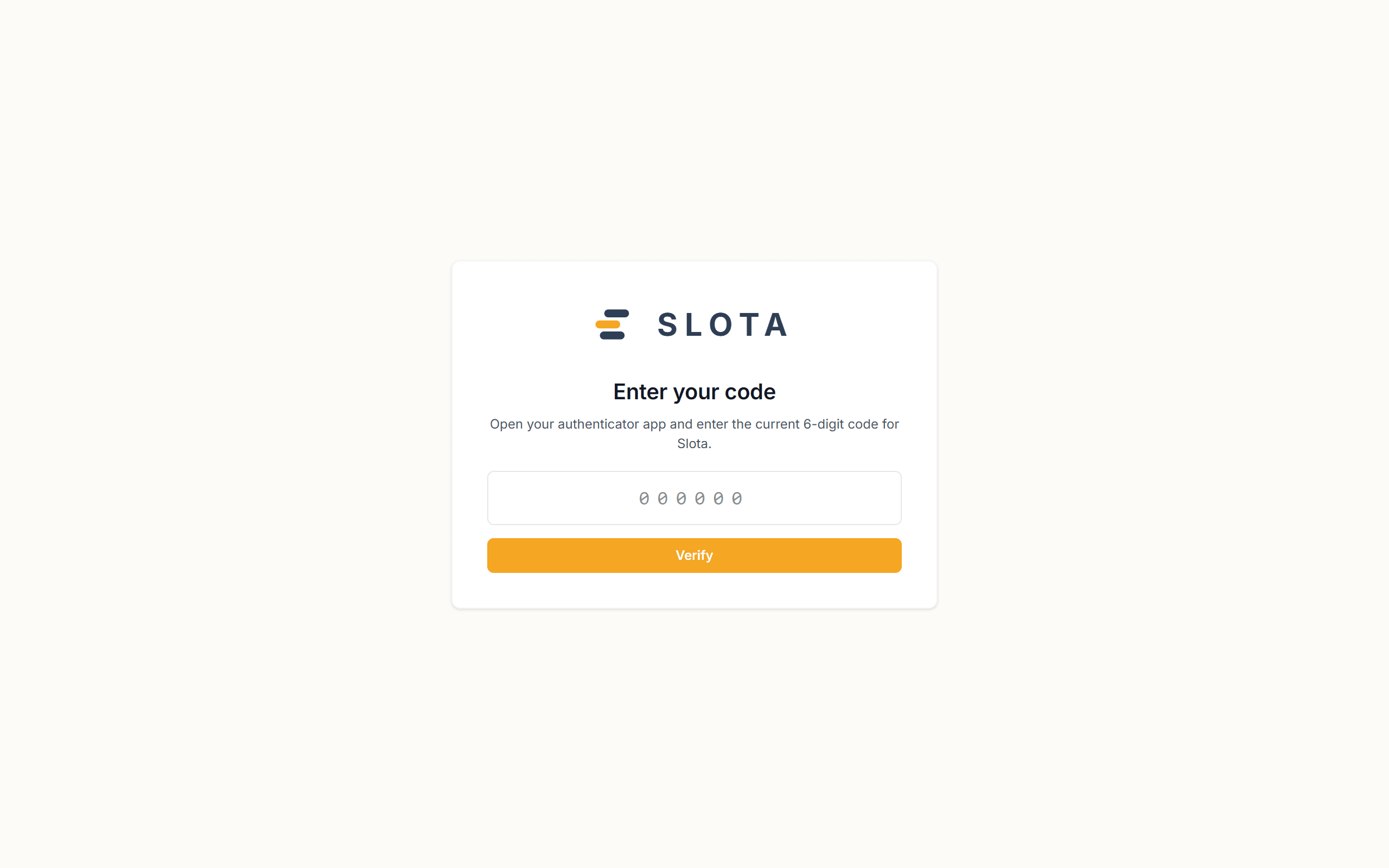
After enrolment, signing in asks for a code as a second step. If you already have a verified factor but your session has not been stepped up, the same page asks for the code instead of showing the QR.
Keep a recovery route. If you lose the authenticator device, an administrator has to intervene — there is no self-service bypass.
Password practice
- Use a unique password for Slota. It is the key to the roster, staff contact details and wage data.
- Change it from the reset flow (Forgot? on the sign-in page) rather than sharing it.
- Never share your clock PIN — it identifies you at the kiosk and stamps your attendance record.