Signing in to Slota
Sign in on the web or the Android app with your work email.
For everyoneUpdated 31 August 2026
Slota runs in your browser and as an Android app. Both use the same account.
Web
- Open your organisation's Slota address and you will land on the sign-in page.
- Enter your work email and password, then select Sign In.
- You can also select Sign in with Google if your organisation uses Google accounts.
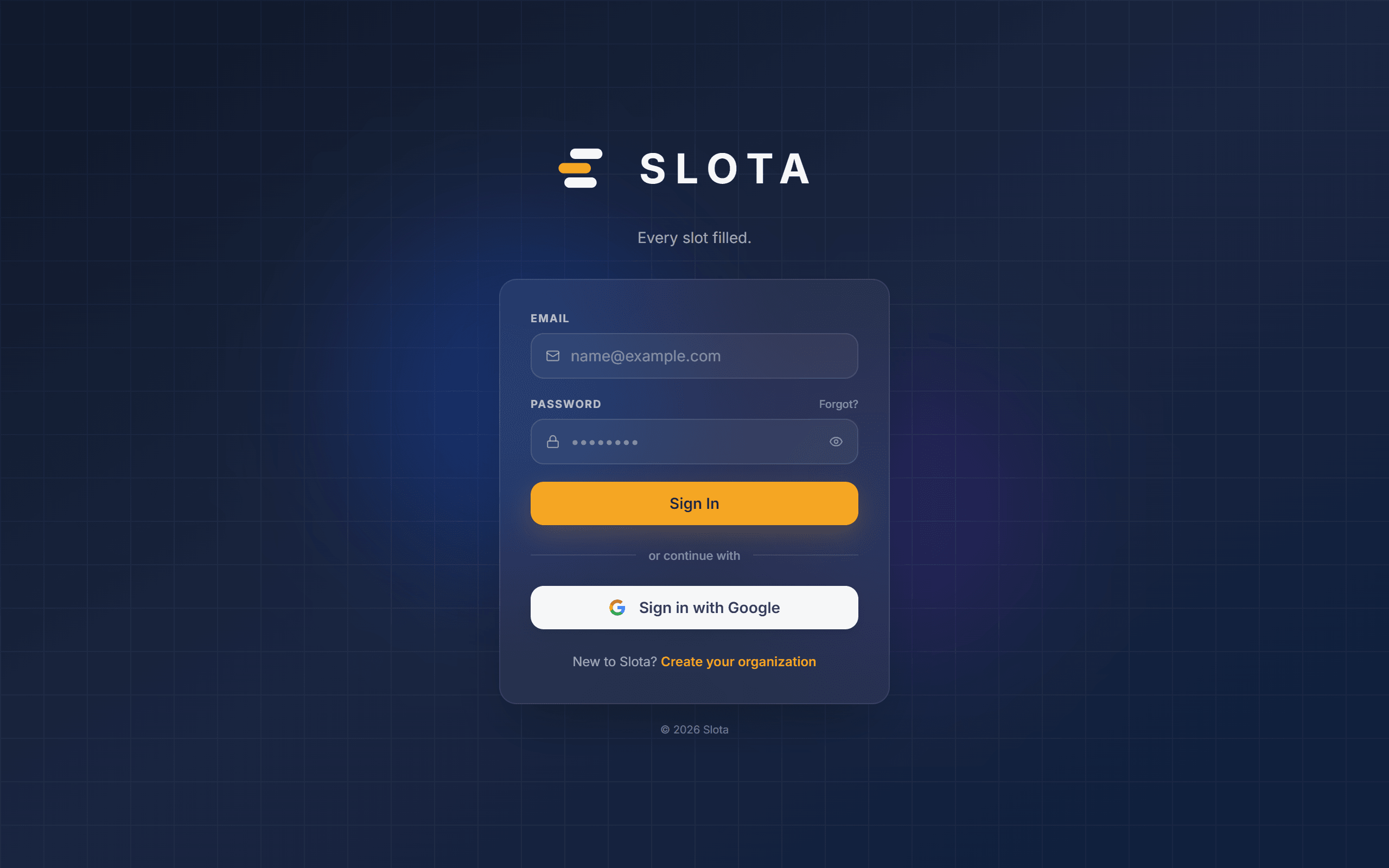
If the details are wrong you will see "Incorrect email or password. Contact your manager if you need access." — accounts are created by your manager, so contact them if you cannot sign in.
Forgotten password
- Select Forgot? next to the password field.
- Enter your work email and submit. If an account exists you are sent a reset link.
- Open the link and set a new password. The link is single-use and time-limited — request a fresh one if it expires.
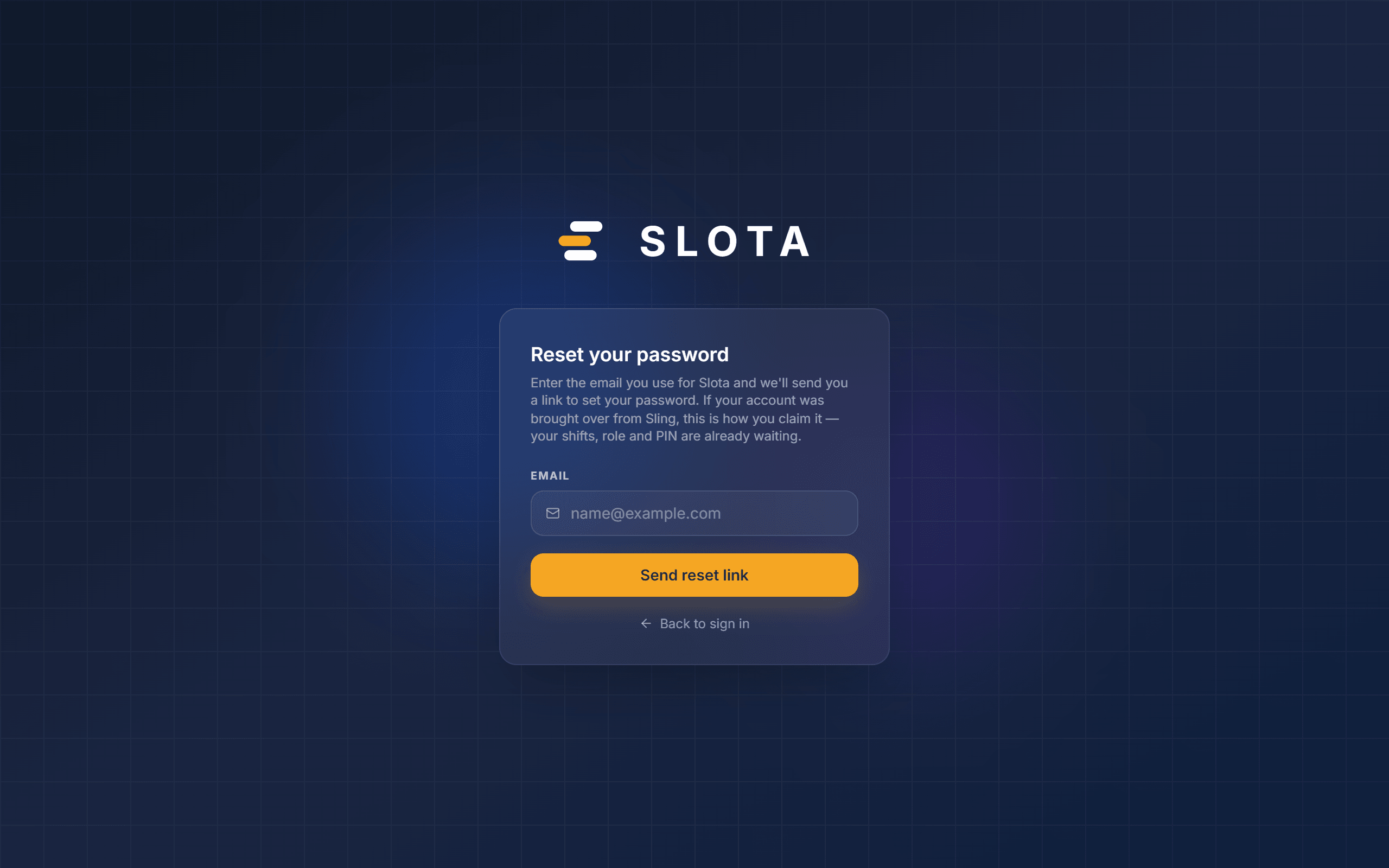
The reset page deliberately does not tell you whether an address has an account. That is intentional — it stops the page being used to discover who works for you.
Android app
- Open the Slota app. The Welcome back screen appears.
- Enter your email and password and tap Sign In.
- You stay signed in until you sign out from Profile → Sign out.
Password reset links open in the app when it is installed, and fall back to the website when it is not.
Slota does not have public self-registration by default. New staff are invited by a manager or administrator.