Finding your way around
What each menu item does on the web and in the Android app.
Web navigation
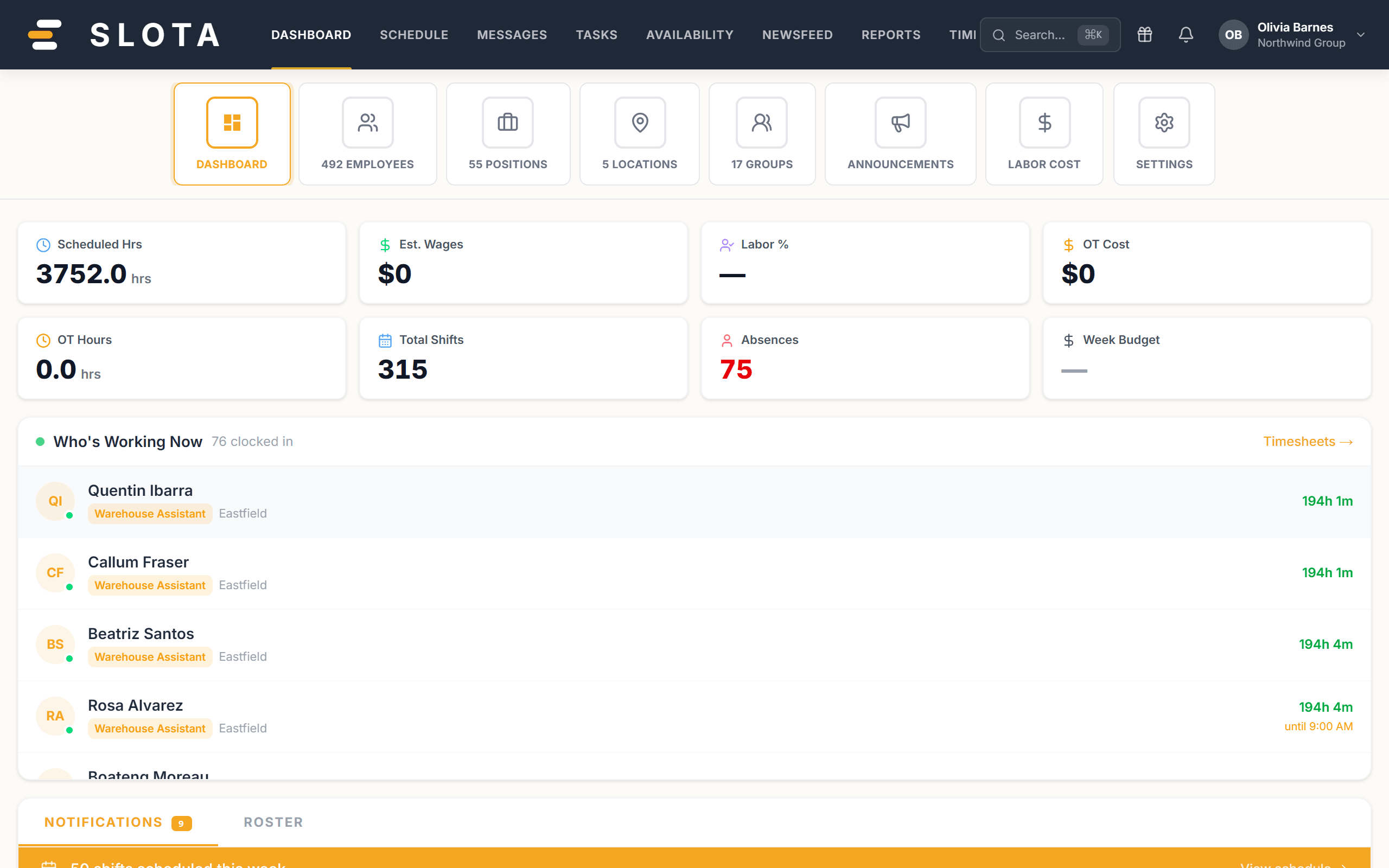
The top bar shows the areas you can use. Employees see Dashboard, Schedule, Messages, Tasks, Availability, Newsfeed, Timesheets. Managers and administrators also see Reports, and reach management screens (Employees, Positions, Locations, Groups, Announcements, Labor Cost, Settings) from the management ribbon and the account menu.
- Dashboard — your day at a glance: notifications, roster summary, and (for managers) key labour numbers.
- Schedule — the roster, and the home of time off, open shifts and unavailability.
- Messages — direct messages and group conversations.
- Tasks — onboarding and shift tasks.
- Availability — the days and hours you're available to work.
- Timesheets — clock-in records for review.
- Newsfeed — organisation announcements.
- Reports — managers and admins only.
The management ribbon
On the Dashboard, the tile strip under the top bar is the fastest route into management screens — Employees, Positions, Locations, Groups, Announcements, Labor Cost, Settings — with live counts on each tile.
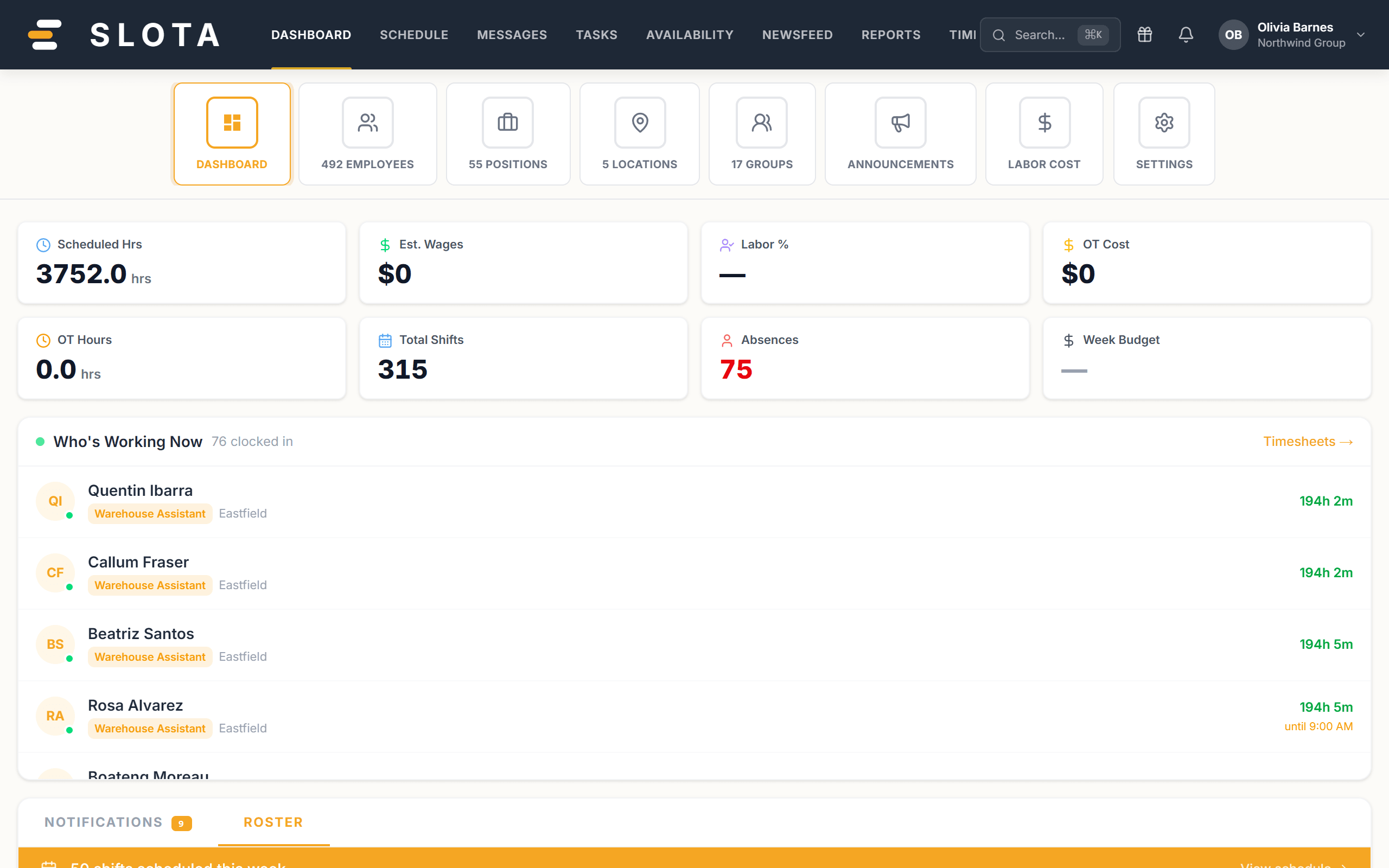
The panel below it has two tabs: NOTIFICATIONS, and ROSTER — who is on today, groupable by employee, position or location.
The account menu
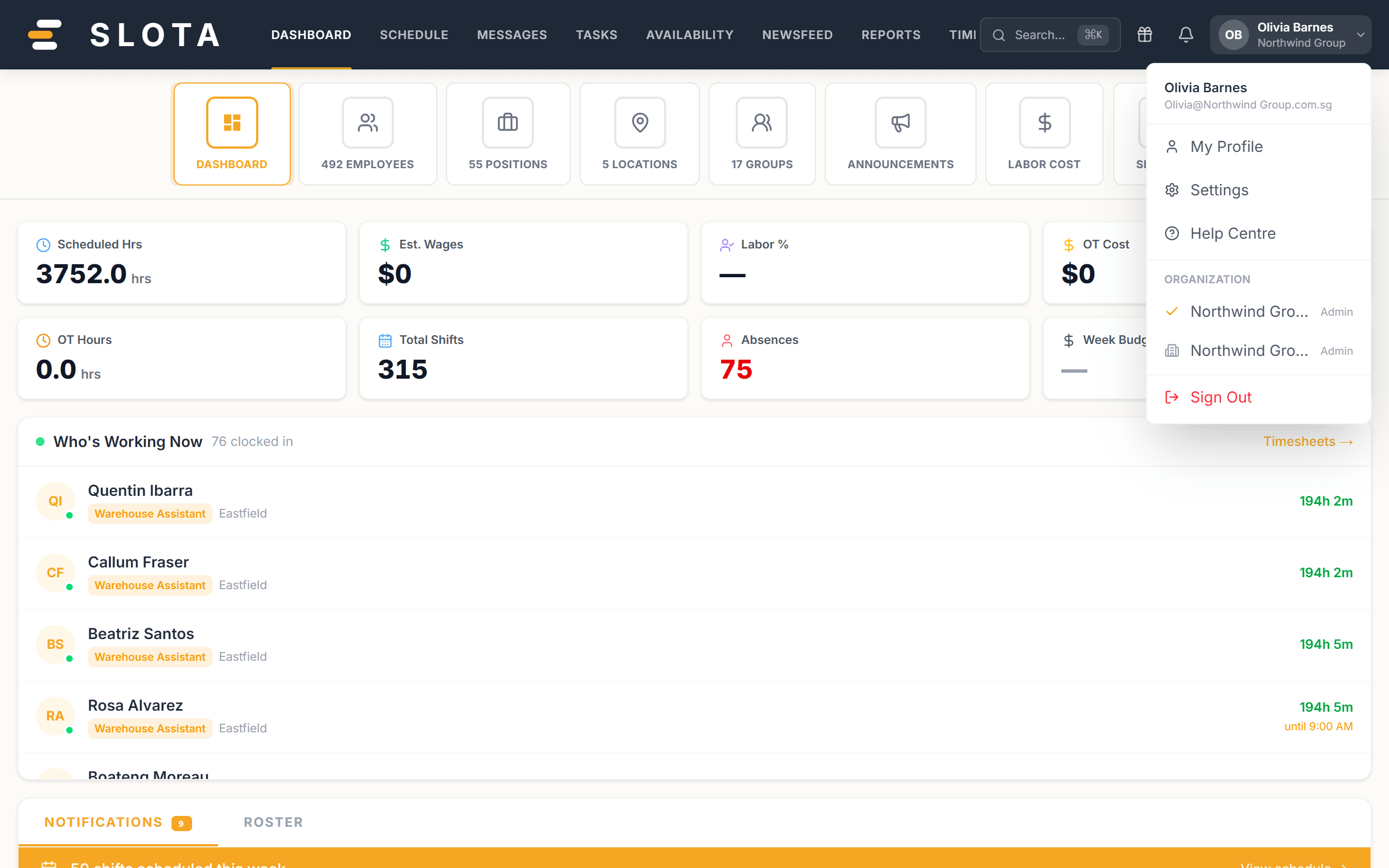
The avatar at the far right opens your account menu: your name and organisation, and the way out to your own profile, security settings and Sign out.
Search anything
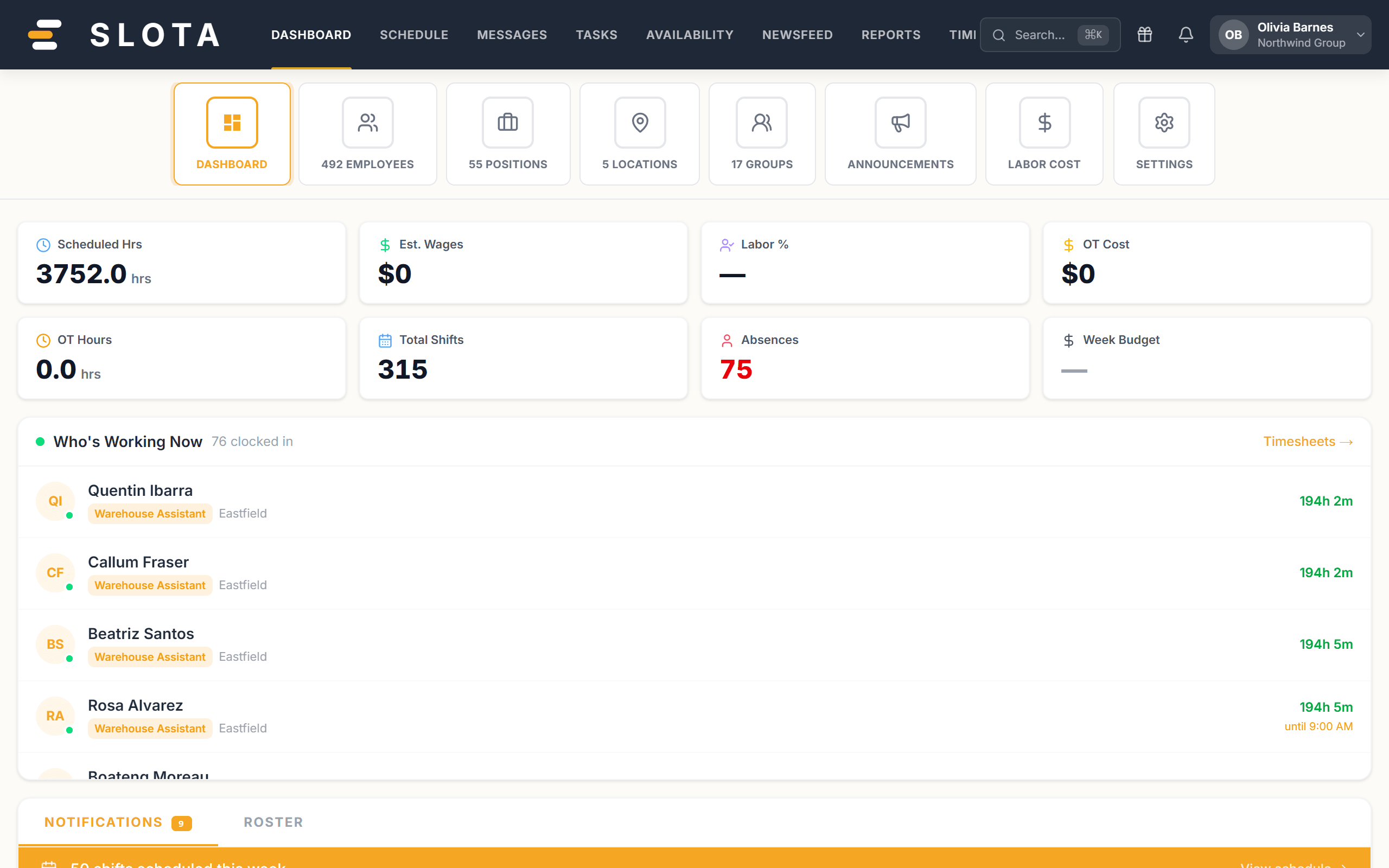
Press Ctrl+K (⌘K on a Mac) anywhere in the web app to open the command palette, then type. It jumps to pages, employees and settings without navigating menus.
Android navigation
The bottom bar has five tabs: Home (Today), Shifts, Tasks, Messages, Profile.
The Home tab shows your next shift, hours this week, and an Action Inbox of items that need you. Profile contains Personal details, Documents, Certifications, Availability, Notification settings, Time off, My timesheets, Pay, language settings, and Sign out.