Clocking in and out
Clock in at a kiosk with your PIN, or on mobile where enabled.
For everyoneUpdated 31 August 2026
How you clock in depends on what your organisation has enabled:
- Kiosk — at the shared kiosk screen, enter your 4-digit clock PIN (find it under Profile → Personal details on Android, or ask a manager). Face check may also be enabled at the kiosk.
- Mobile — where the organisation allows mobile clock-in, the Home card offers it during your shift window. If it is kiosk-only, the card says "clock in at a kiosk" instead.
- Clock-in can be limited to a window before your shift starts, to the site's network, or to your GPS location, depending on settings.
Breaks
If breaks are enabled on the time clock, the kiosk shows a Break button so you can start and end a break without clocking out.
If your organisation requires break attestation, clocking out asks "Did you take your required break during this shift?" with three honest answers:
- Yes, I took my break
- No, I missed my break
- I chose to waive my break
Answer truthfully. A missed break can generate a manager alert and may affect pay — the record is the point.
Where your hours go
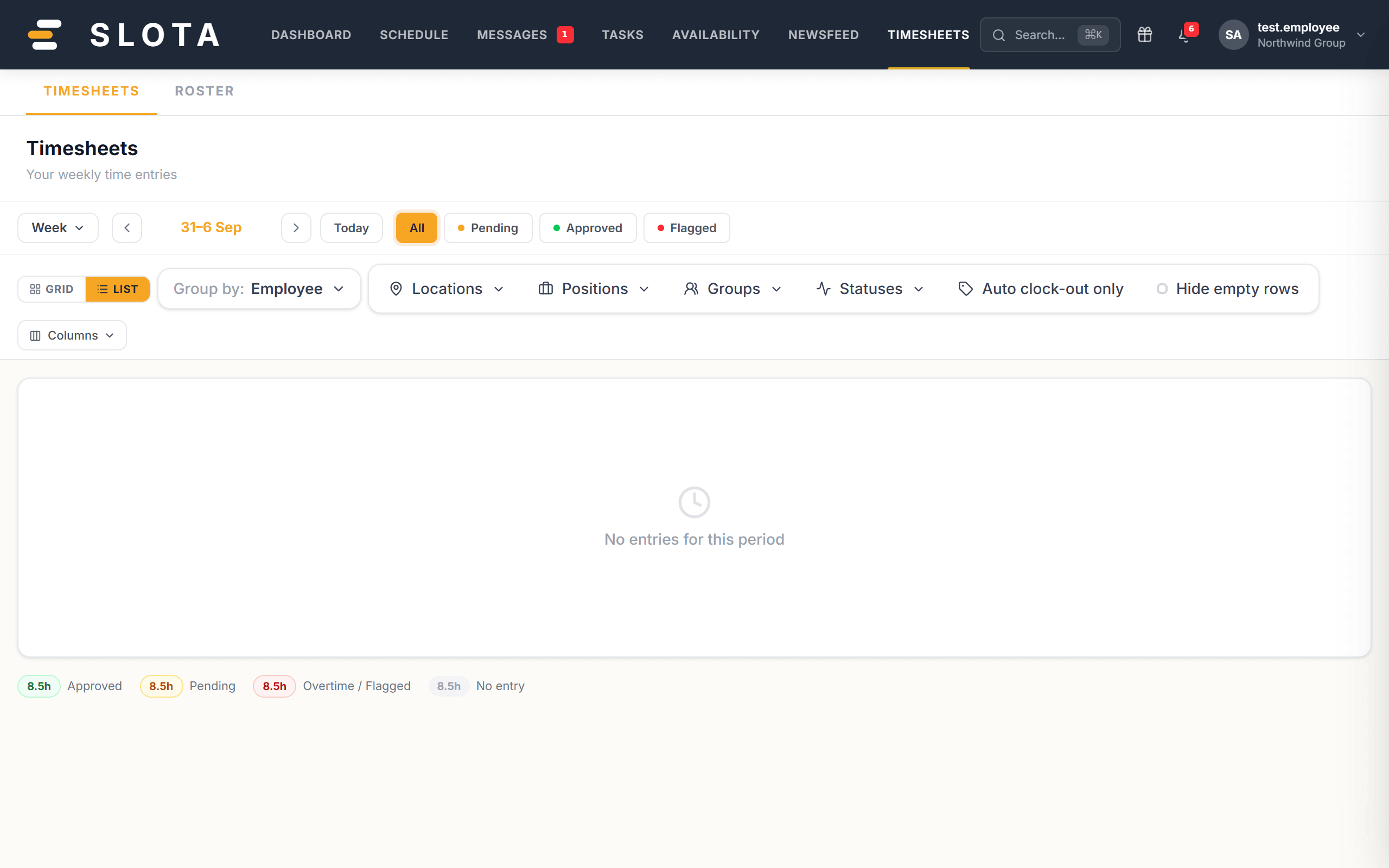
Your entries appear under Profile → My timesheets (Android) and on the web Timesheets page.
Never share your PIN. It stamps an attendance record in your name.