Running a kiosk (managers)
Start the shared clock-in screen, and what staff see on it.
For managers & adminsUpdated 31 August 2026
A kiosk is a shared screen at a location that staff clock in on. It runs in a normal browser at /kiosk.
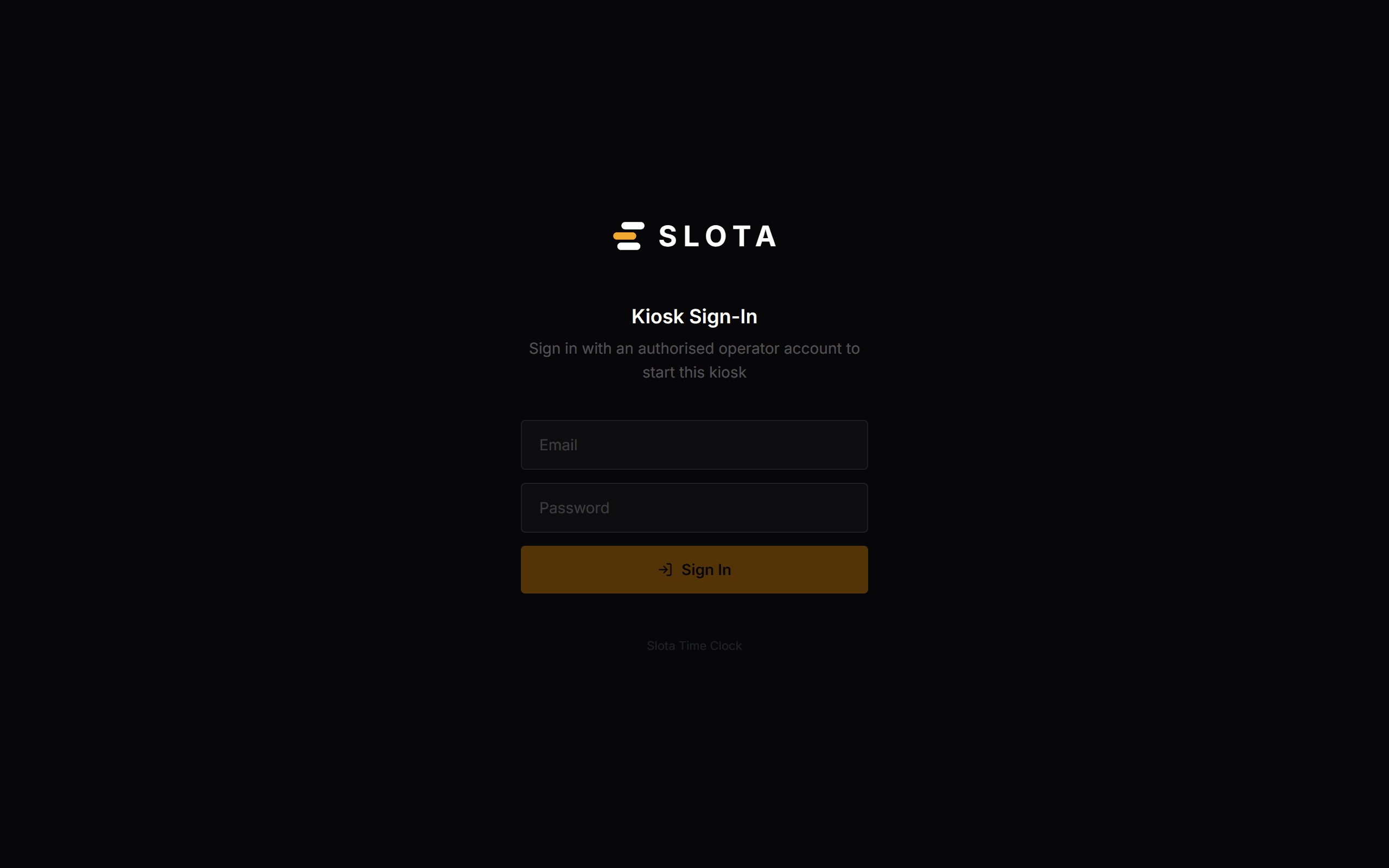
Starting it
- Open /kiosk on the device.
- Sign in with a manager or admin email and password. This authorises the device — staff never sign in individually.
- The kiosk shows its mode: PIN, Face, or PIN + Face, as configured for that kiosk.
What staff do
- Enter PIN — a 4-digit personal clock PIN identifies the person and records the punch.
- Face — where enabled, a face check runs after or instead of the PIN. Face enrolment happens on the kiosk too.
- Break — start and end a break without clocking out, when breaks are enabled.
- Clock In (Unscheduled) — available when Allow unscheduled clock-in is on, for people working outside a scheduled shift.
Registering and revoking kiosks
Kiosks are registered in Settings → Time Clock with a label, a location and an authentication mode. You can revoke a kiosk's session or delete it at any time — do this immediately if a device is lost.
Practices
- One kiosk per entrance people actually use. A kiosk on the wrong side of the building produces late clock-ins that are not lateness.
- Revoke, do not just close the tab, when a device leaves the site.
- PIN rate-limiting is enforced on the server, so repeated wrong PINs lock out rather than allowing a guess-until-it-works attack. Tell staff to ask a manager rather than keep trying.