Reviewing timesheets (managers)
Filter, review and approve the week's time entries.
For managers & adminsUpdated 31 August 2026
Open Timesheets. The page shows a week of time entries with:
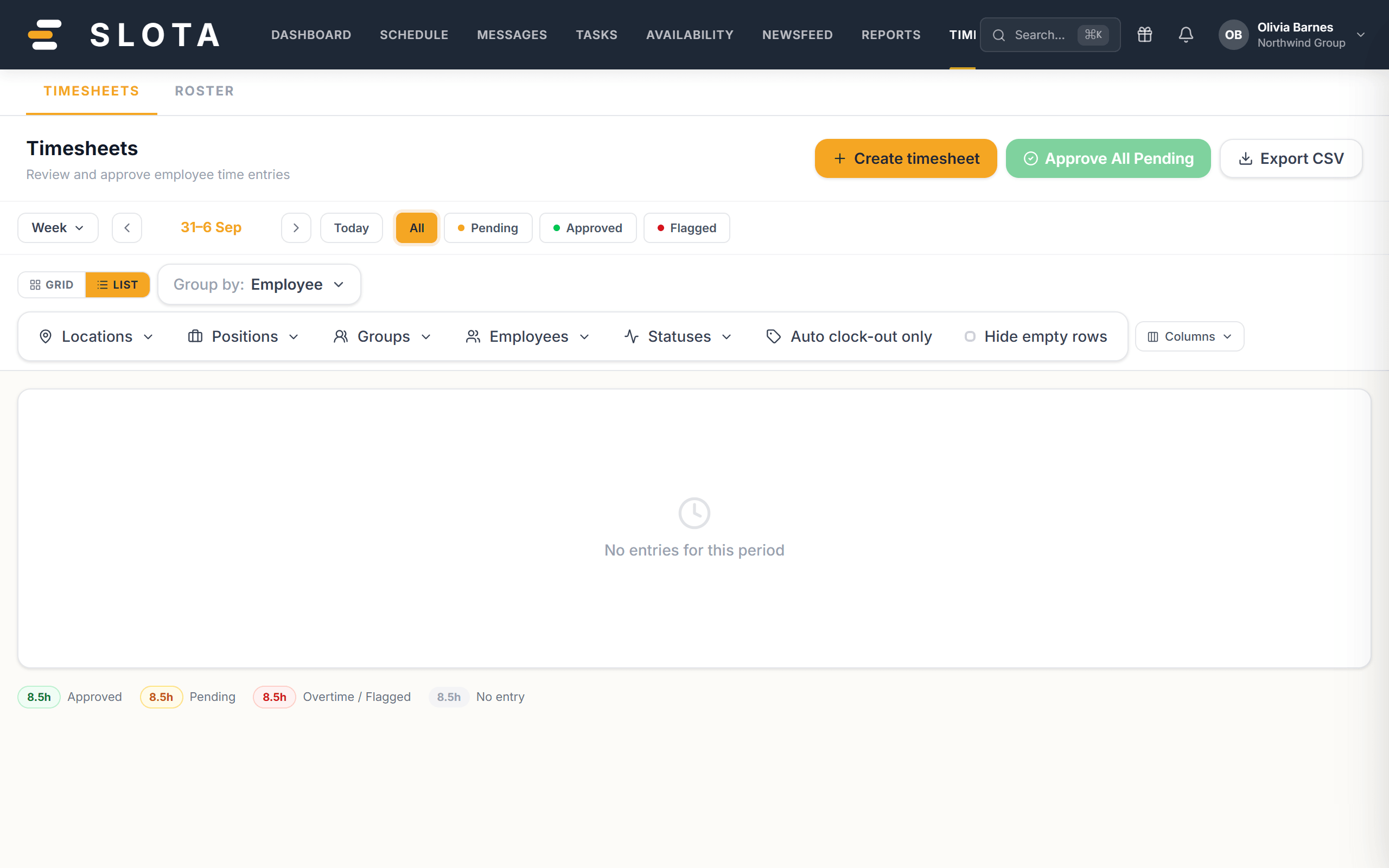
- All / Pending / Approved / Flagged status filters and week navigation.
- GRID / LIST layouts, Group by employee, plus Locations / Positions / Groups / Statuses filters, an Auto clock-out only filter and Hide empty rows.
- A colour legend — approved, pending, overtime/flagged, no entry.
- Deployment Standby clock-ins arrive flagged for review so bench hours never slip through unnoticed.
If a period has no entries you'll see "No entries for this period".
The weekly routine
- Filter to Flagged first. That is where the exceptions are — overtime, standby, auto clock-outs, geofence failures.
- Then Pending, and approve what is clean.
- Use Auto clock-out only to find shifts where someone forgot to clock out and the safety net fired. Those need a real end time, not an approval.
- Approve before running payroll reports — Payroll and Attendance are built from approved entries.
Practices
- Approve weekly, not monthly. Memory of what actually happened has a short half-life.
- Fix the timesheet, not the shift. The shift is the plan; the timesheet is the record of what happened.
- If a person is repeatedly auto-clocked-out, the problem is a habit or a badly placed kiosk, not the data.