Reading the schedule
The week grid, day/month views, filters, and what the colours mean.
The Schedule page shows a week by default. Use the arrows or Today next to the week label to change dates, and the view selector to switch between Day, Week and Month.
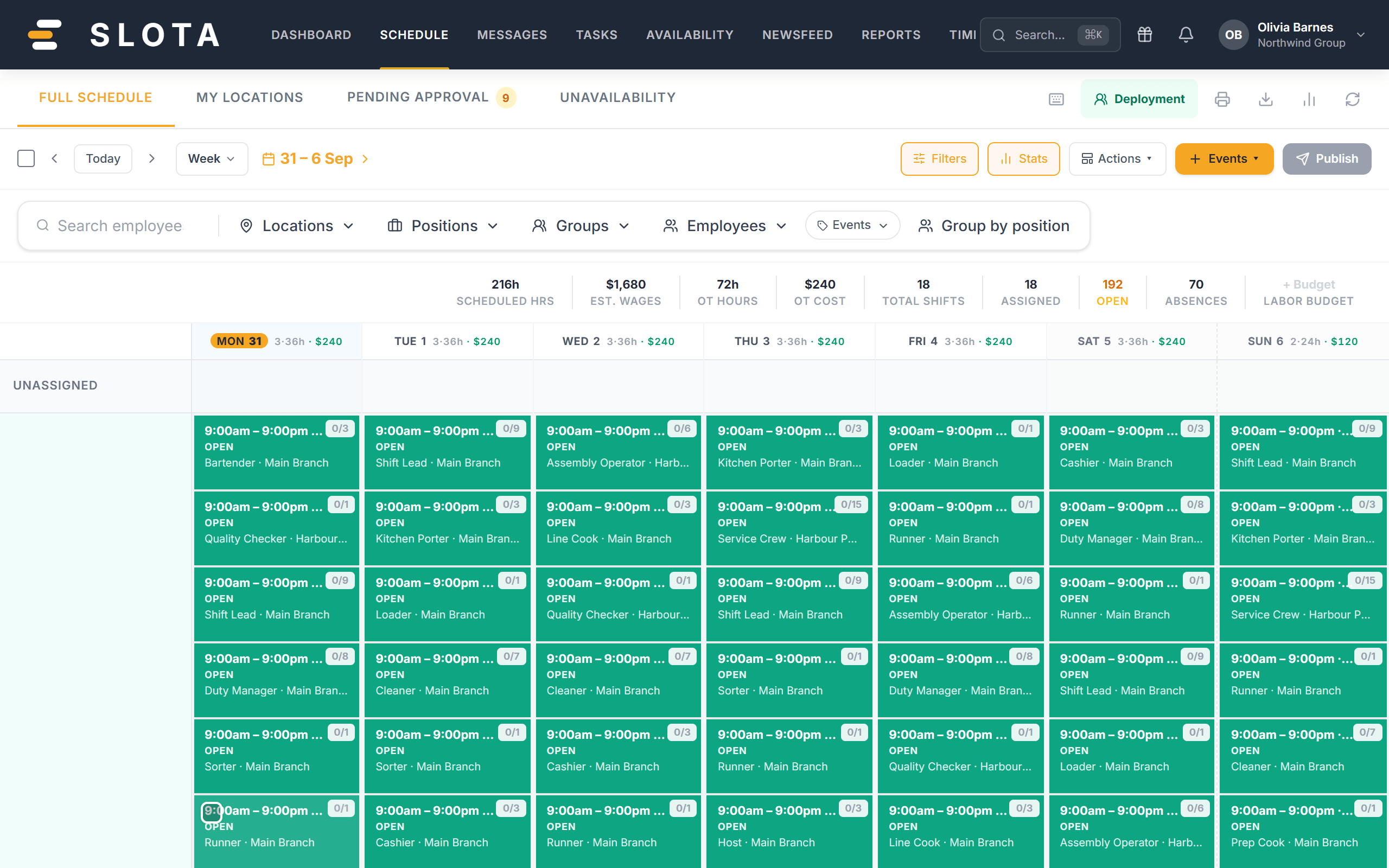
- Shifts are grouped in rows: Unassigned (open shifts a manager still has to fill), Available (open shifts you can apply for), then Scheduled shifts per person.
- The stats band above the grid totals scheduled hours, estimated wages, overtime hours, total shifts, assigned, open for the visible week.
- Filter with Search employee, Locations, Positions, Groups, Employees, or Group by position. Clear filters resets everything.
- Colours follow the shift's position. A STANDBY side-tab marks deployment standby shifts, and red/orange tabs mark NO SHOW and SICK CALL.
Day view
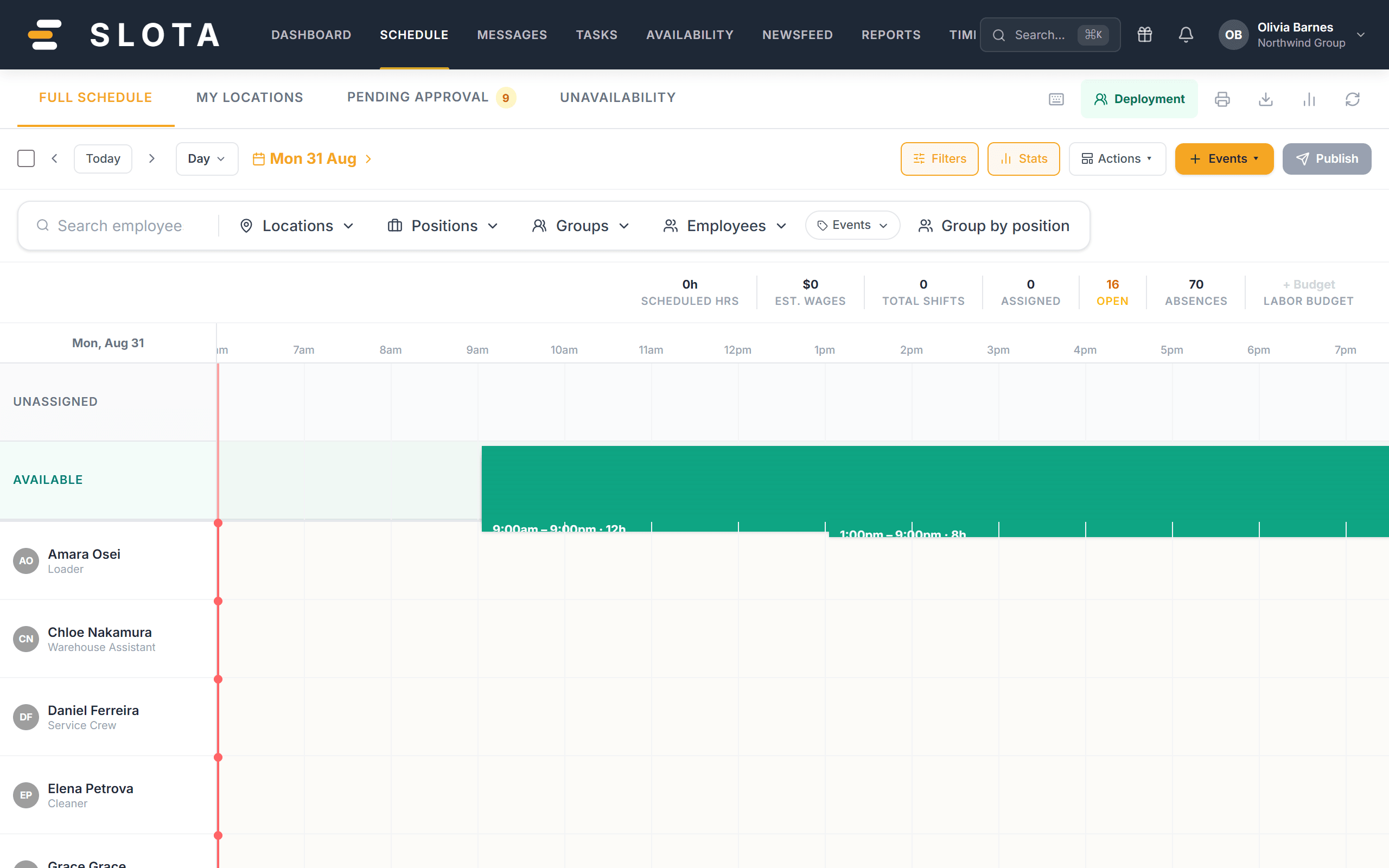
The day view lays one date out against the clock. Its visible hours come from Settings → Schedule → Schedule day start / Schedule day end, so a venue that opens at 06:00 and closes at 02:00 should widen that range or shifts will sit off the edge.
Month view
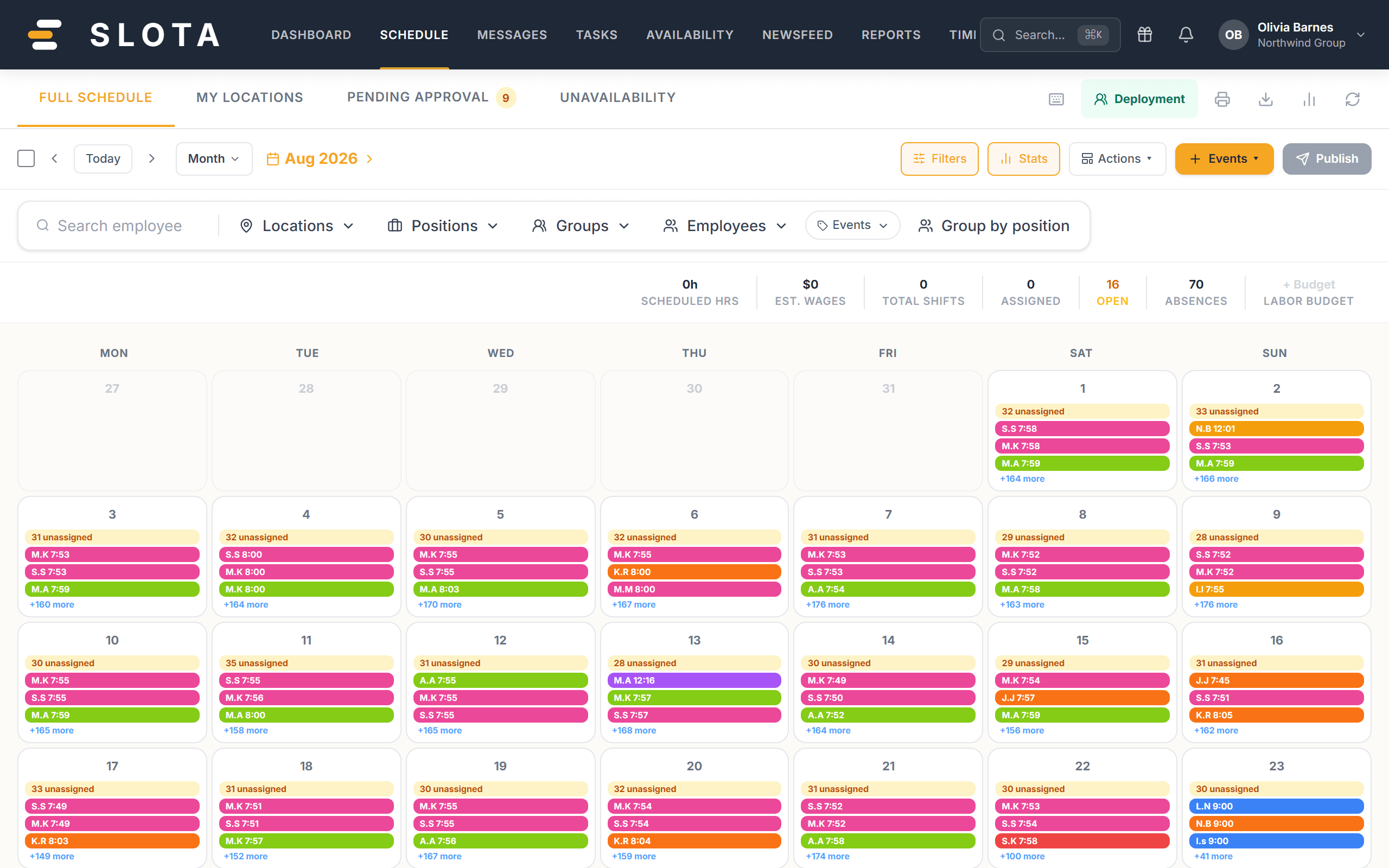
The month view is for spotting patterns and gaps, not for editing detail. Use it to see coverage across a period, then drop into a week or day to make changes.
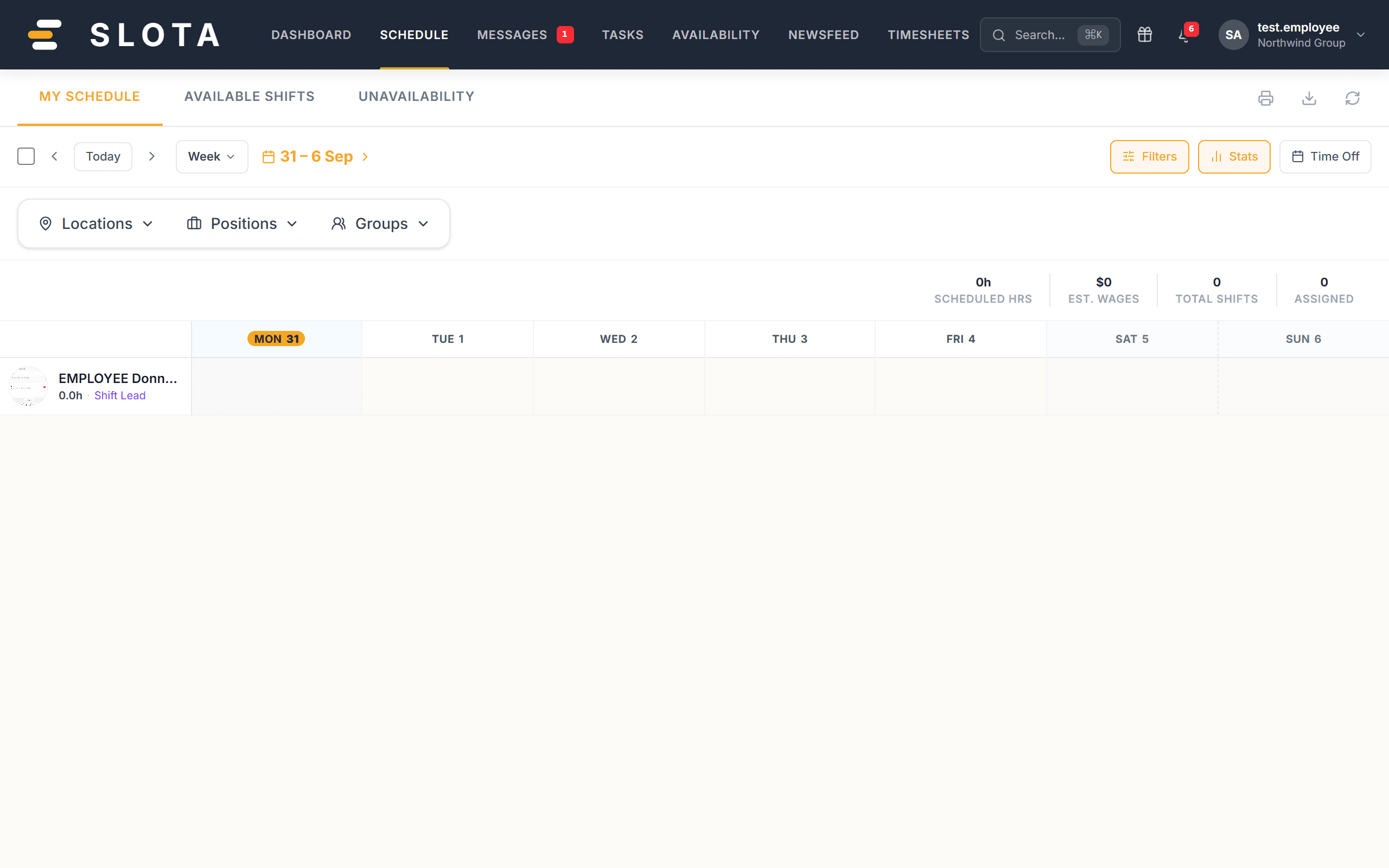
What employees see
Employees see the same page with their own shifts and any open shifts they can pick up. How much of everyone else's schedule they see is controlled by Settings → Schedule → Employee schedule visibility.