Creating a shift (managers)
Add a scheduled, unassigned or available shift from + Events.
For managers & adminsUpdated 31 August 2026
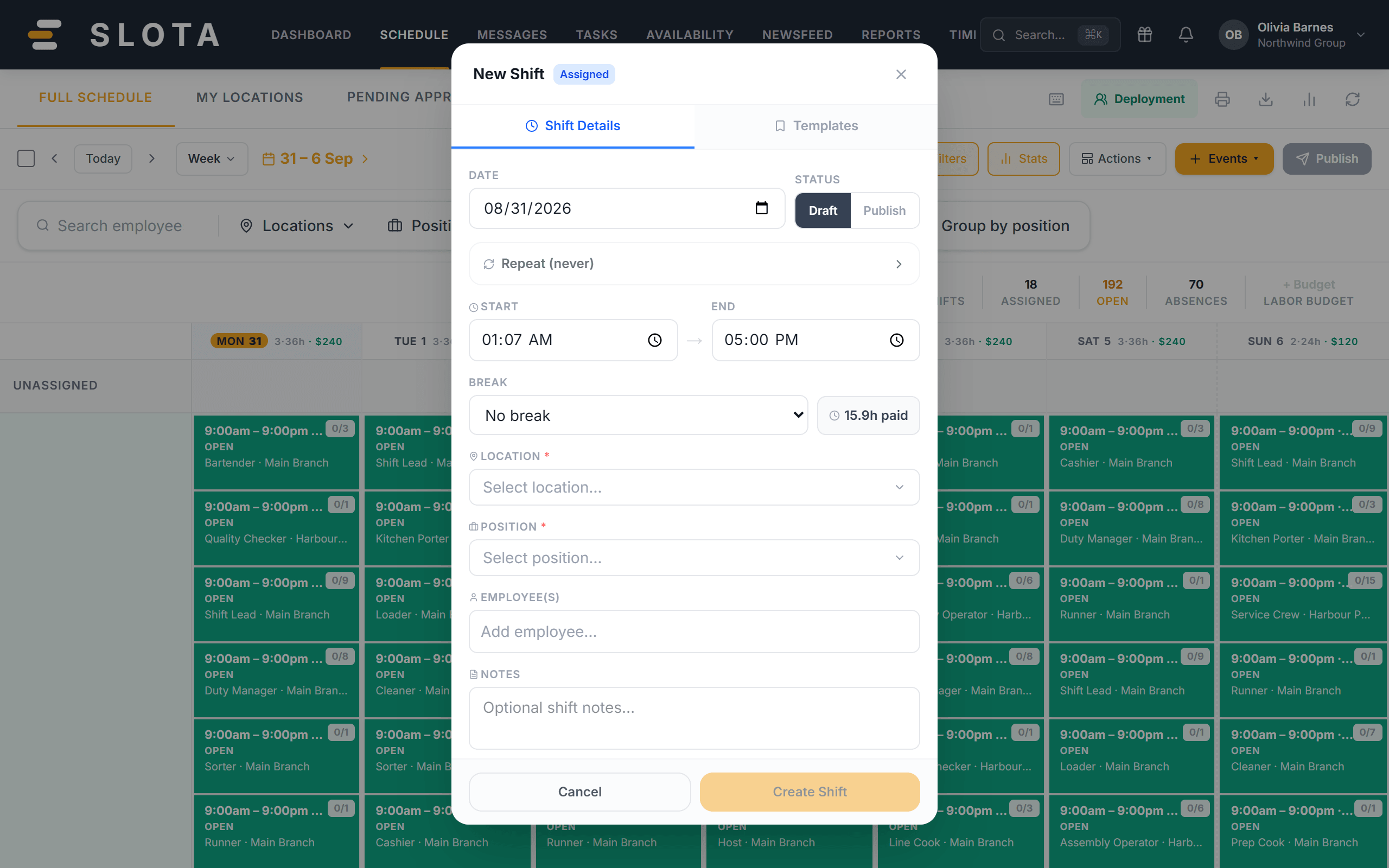
- On Schedule, select + Events and choose Scheduled (assigned to someone), Unassigned (open, to fill later) or Available (offered for employees to claim).
- In New Shift, set the date, start / end time and an optional break. The paid-hours badge updates as you type.
- Choose the Location and Position (both required), then add one or more people under Employee(s) — search by name.
- Leave Status on Draft to keep it unpublished, or select Publish to make it live immediately.
- Select Create Shift. A confirmation appears: "Saved as draft — publish when ready."
Warnings you may see
Slota saves the shift and then tells you what is unusual about it — it does not block you:
- Availability conflict — the person has marked themselves unavailable for those hours.
- "Shift saved — employee has N overlapping shift(s) this day" — they are double-booked.
- "Clopening: only Nh rest before/after an adjacent shift (min Nh)" — too little rest between a closing and an opening shift. The threshold is Settings → Schedule → Clopening warning threshold; set it to 0 to disable.
Drafts are only visible to managers. Employees see the shift after you publish.