PDF templates and signature fields (admins)
Upload a document and place the fields staff will fill and sign.
For administratorsUpdated 31 August 2026
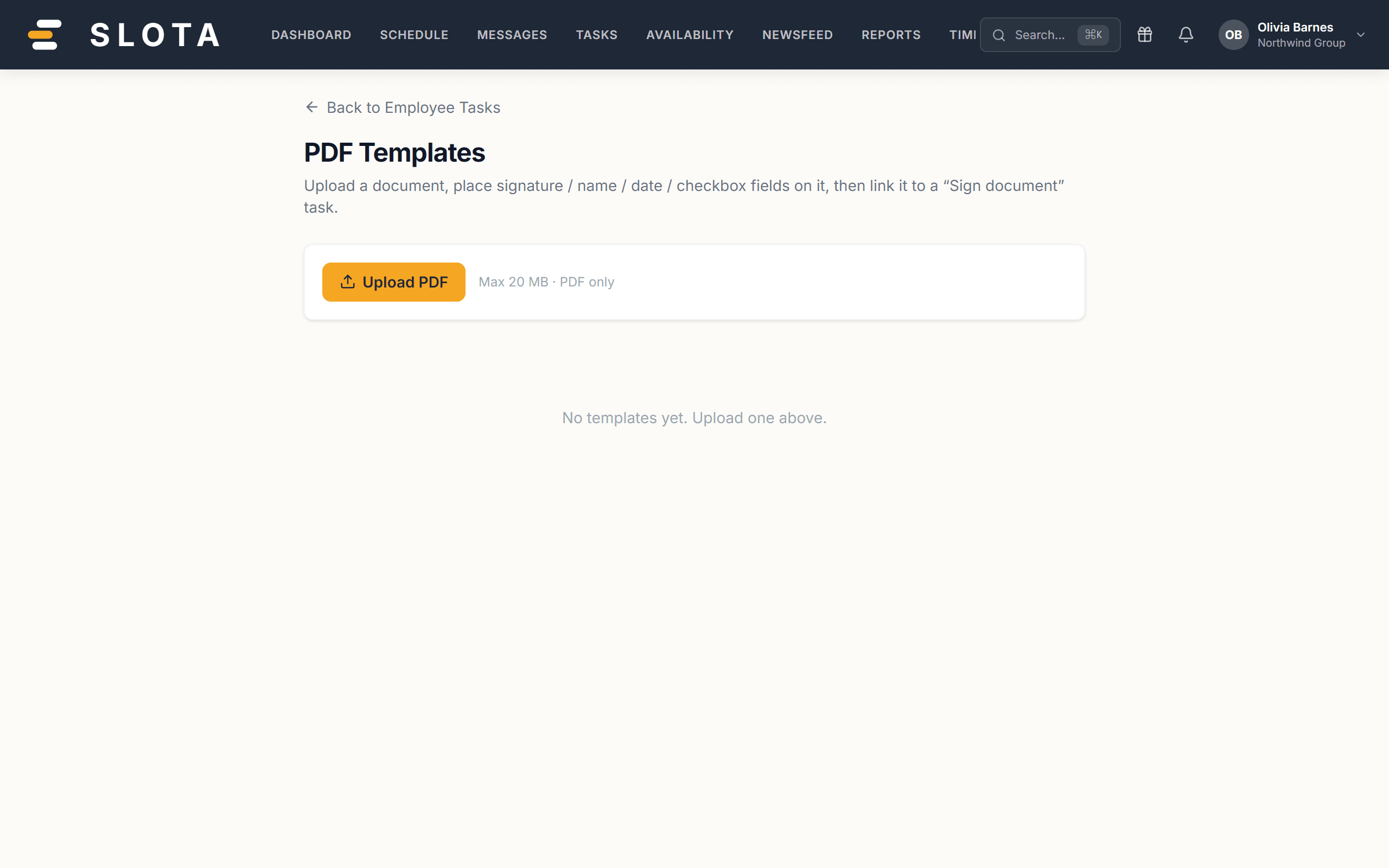
Open Settings → Onboarding → PDF Templates. The page explains itself: upload a document, place signature / name / date / checkbox fields on it, then link it to a "Sign document" task.
Uploading
- Select Upload PDF and choose the file.
- The template appears in the list. Open it to place fields.
Placing fields
The builder renders the PDF page by page with ‹ › page navigation.
- Place each field where it belongs on the page — signature, full name, date, checkbox.
- Select Save fields. You'll see "Saved N fields".
Deleting
Deleting a template asks "Delete this template and all its placed fields?" — the fields go with it.
Practices
- Place the fields against the final version of the document. Re-uploading a revised PDF means placing the fields again.
- Check every page. A signature block on page 7 of a 9-page contract is easy to miss and impossible for the signer to add themselves.
- Keep one template per document, not per person. The template is the form; each signature is a separate record against it.