Approving requests (managers)
Work the Pending Approval tab on the Schedule page.
For managers & adminsUpdated 31 August 2026
Approvals live on Schedule → PENDING APPROVAL. The tab carries a count badge so you can see outstanding work without opening it.
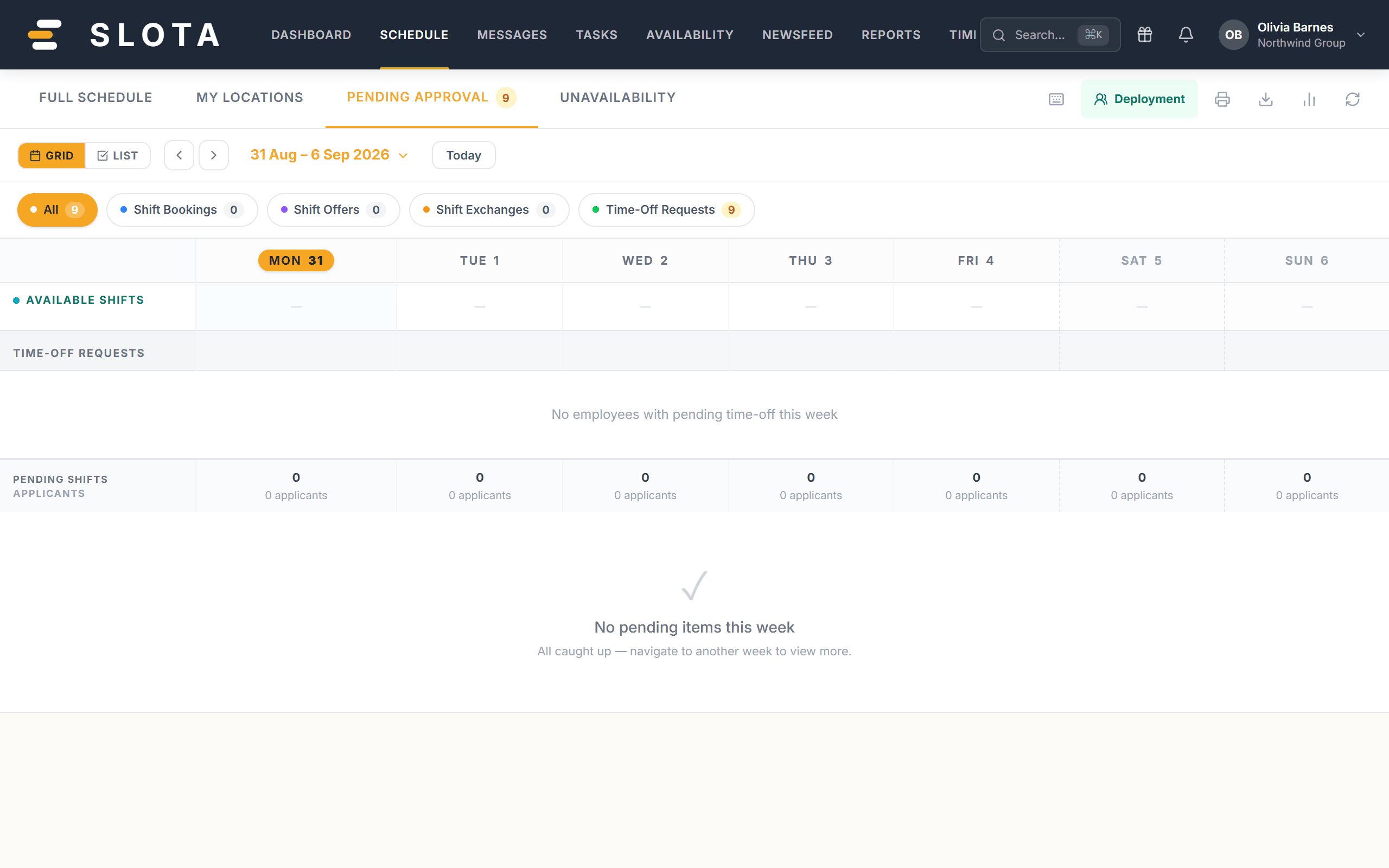
- Open Schedule and select the PENDING APPROVAL tab.
- The queue shows what is waiting on you — time-off requests and shift swap requests — laid out against the week so you can see what each one would do to coverage.
- Approve or Reject. A confirmation explains the effect; approving a PTO request also updates the employee's PTO balance.
- The badge count drops, and the employee is notified on web and Android.
This is why the queue sits on the Schedule page rather than in its own menu: a leave decision is a coverage decision, and you want the roster in front of you when you make it.
Practices
- Clear the queue before you build the week's roster, not after. An approval that lands after publish means re-cutting shifts.
- Reject with a reason in the conversation, not just the button. The status change is a notification; the explanation is not.
- Keep a note of why when you adjust a balance by hand — balances that move without explanation are the fastest route to a payroll dispute.