Editing and deleting shifts (managers)
Change a published shift or remove it, with automatic re-notification.
For managers & adminsUpdated 31 August 2026
Edit
- Click a shift block to open Shift details (employee, date, time, estimated cost, location, position, coworkers, tasks).
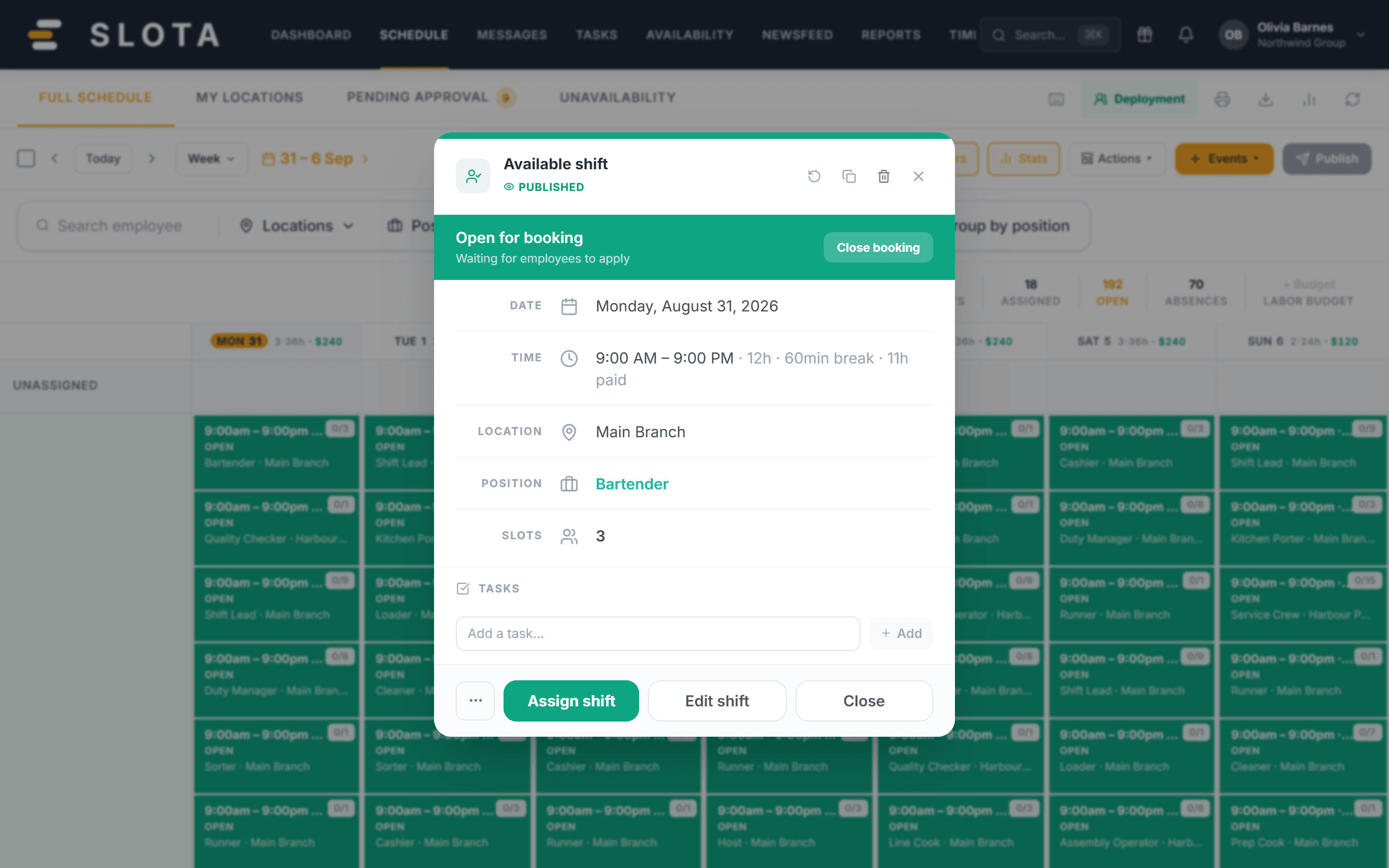
- Select Edit shift, change the fields, then Save Changes.
- For a published shift you'll see "Changes published immediately" and the employee gets an updated Shift Assigned notification.
Delete
- Open Shift details and select the bin icon.
- A red bar warns "This cannot be undone." Select Confirm Delete.
- The shift is removed permanently from the schedule.
Practices
- Editing a published shift notifies the person immediately. Batch your corrections rather than nudging times one at a time.
- Deleting a shift someone has already worked breaks the link to their timesheet entry. Correct the timesheet instead — see *Reviewing timesheets*.